I have just finished working on implementing command line overlay built into my engine. For now, support for several commands has been added, but their set will expand significantly in the near future. I am very pleased with its implementation because thanks to the command line, I will be able to test the engine and the game itself faster and more conveniently.
Compiled demo to play with (win32 x64) — Wnc — command line.zip (1.4 MB)
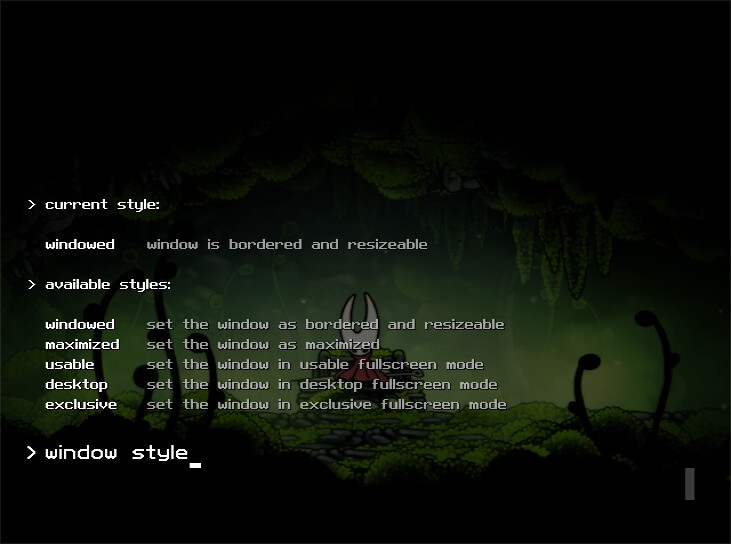
Now that work on the command line has been completed, I would like to ask you to test it. I don’t mean testing the command line itself, but rather checking that the window style changes correctly when specific commands are used.
My engine supports five window styles, available for use on any available display. Below is a description of their characteristics:
- Windowed — window with decoration and resizable.
- Maximized — window with decoration and maximized.
- Usable — desktop fullscreen, borderless window stretched across the entire working area of the display (does not cover the taskbar or other widgets).
- Desktop — also desktop fullscreen and borderless window but stretched across the entire display area, covering the taskbar and other widgets.
- Exclusive — exclusive fullscreen, on any display and using any available display mode.
I have two displays, and the engine can easily display a window in any of the above styles on each of the displays, including exclusive fullscreen with any display mode. Now I would like you to check whether window style switching works correctly on your computers — I am most interested in testing exclusive fullscreen style and resolutions/refresh rates other than the default ones.
How to use the command line
The command line contains a few functions, but I will only describe the most important ones.
| key(s) | feature |
|---|---|
| ` | shows or hides the command line overlay |
| Ctrl+` | shows the command line overlay with blocking of game logic execution |
| Enter | executes the entered command |
| Ctrl+Enter | executes the command and hides the command line overlay |
| Esc | clears the editor field |
When the command line is visible:
| key(s) | feature |
|---|---|
| F1 | toggle help system |
| F2 | toggle command line output |
| F5 | refresh help content |
| Up | select the previous executed command |
| Down | select the next executed command |
When the output or help is visible but contains more lines of text than can fit on the screen:
| key(s) | feature |
|---|---|
| PageUp | scroll one line up |
| Ctrl+PageUp | scroll one page up |
| PageDown | scroll one line down |
| Ctrl+PageDown | scroll one page down |
There are also some fixed debug keys available when the command line is hidden:
| key(s) | feature |
|---|---|
| PageUp | speeds up the simulation pace (logic update pace) |
| Ctrl+PageUp | sets the maximum simulation pace (60ups) |
| PageDown | slows down the simulation pace |
| Ctrl+PageDown | sets the minimum simulation pace (1ups) |
| Tab | hold to fast forward the simulation (3x faster than native, i.e. 180ups) |
How to change window style using command line
The command line contains a virtual edit field, whose functionality is similar to native edit fields. You can enter characters (SDL text input mode), move the caret, select text freely, and even use the system clipboard. Mouse support is not implemented because I don’t need it. There is a narrow range of characters allowed to be entered — letters, numbers, the minus sign and space (all others are filtered out).
To change the window style, use the command window style <name ...>. Replace “name” with the name of the style, followed by the optional index of the target display. In the case of exclusive fullscreen, also include the index of the target display mode.
For example, to set the maximized window on the current display, enter the following command:
window style maximized
To set this window style but move the window to display 1, use the following command:
window style maximized 1
Another example, to use exclusive fullscreen on display 0 and using display mode 17, use the following command:
window style exclusive 0 17
And so on. If the help system is visible, while typing the command, it will display information about the values available for the next argument (first column), including the available display indexes and display modes, as well as their brief descriptions (second column). The help content changes dynamically as you type the command — you don’t have to refresh it manually (F5 key is for special cases).
Please play around with this demo and check if the window styles are applied correctly, provided you are not afraid to run unknown executable files downloaded from the Internet. 
If anyone finds a bug, does not understand something, or simply has any questions, please respond — I will be happy to answer. Thanks in advance for your feedback.
BTW
The window has fully functional decoration, including a title bar and system buttons in the upper right corner of the window. They can be used, even though their icons are not rendered yet. However, the fifth button from the right does nothing, and the fourth from the right toggles the status bar, whose content is not rendered yet.
Just in case, the demo is a portable version that does not save any data on the user’s system. Log output in this demo is set to a dynamically allocated system console (at the end, it prints a summary of memory usage; you must press Enter to finish). The background image is located in the user\back.png file, which you can change to something else if you want (just keep the resolution the same).