GPU Debugger on Mac, How to attach Metal Debugger on MacOS to SDL3 GPU app using Odin.

Hello Everyone,

I am following an SDL3 GPU playlist and I don’t have visibility into the GPU.

So, I was searching for debuggers for use on Mac. And I need some help attaching the Metal Debugger to SDL3 GPU application.

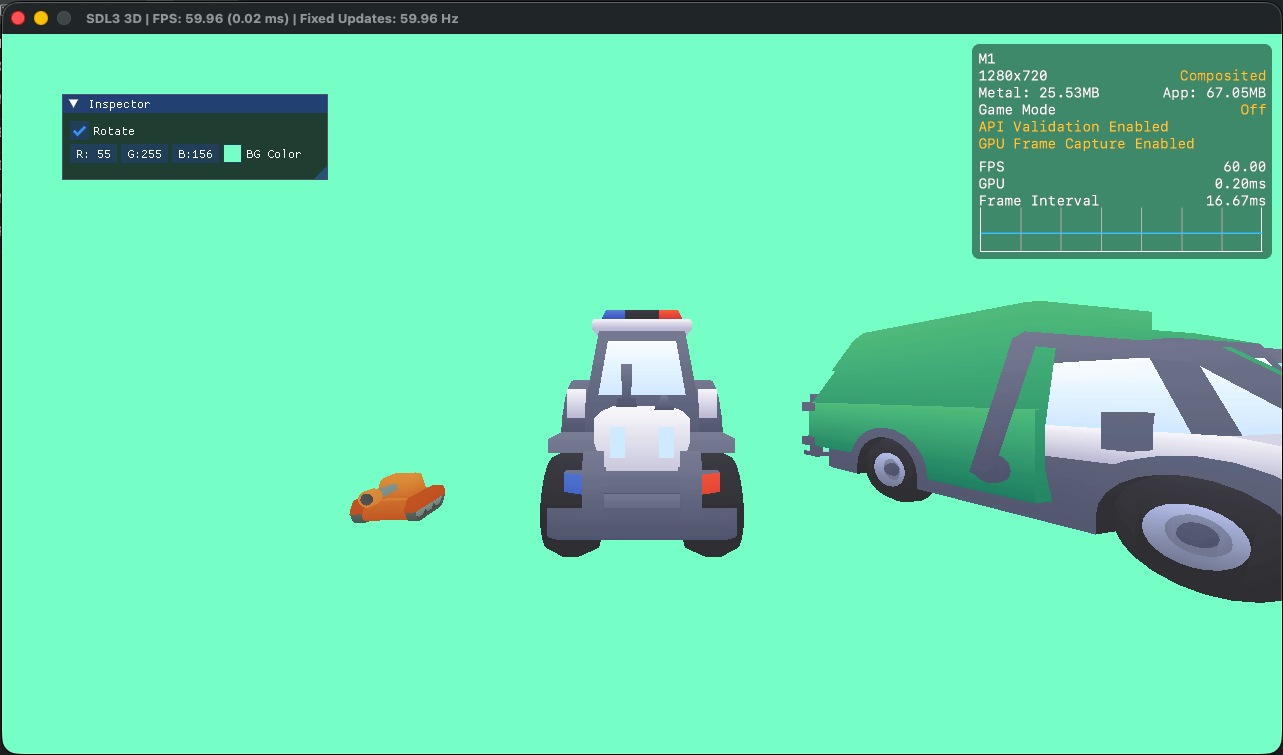
Here’s how it looks: Press Start: Game development on Apple platform

I got the Performance HUD showing with METAL_HUD_ENABLED=1 env variable.
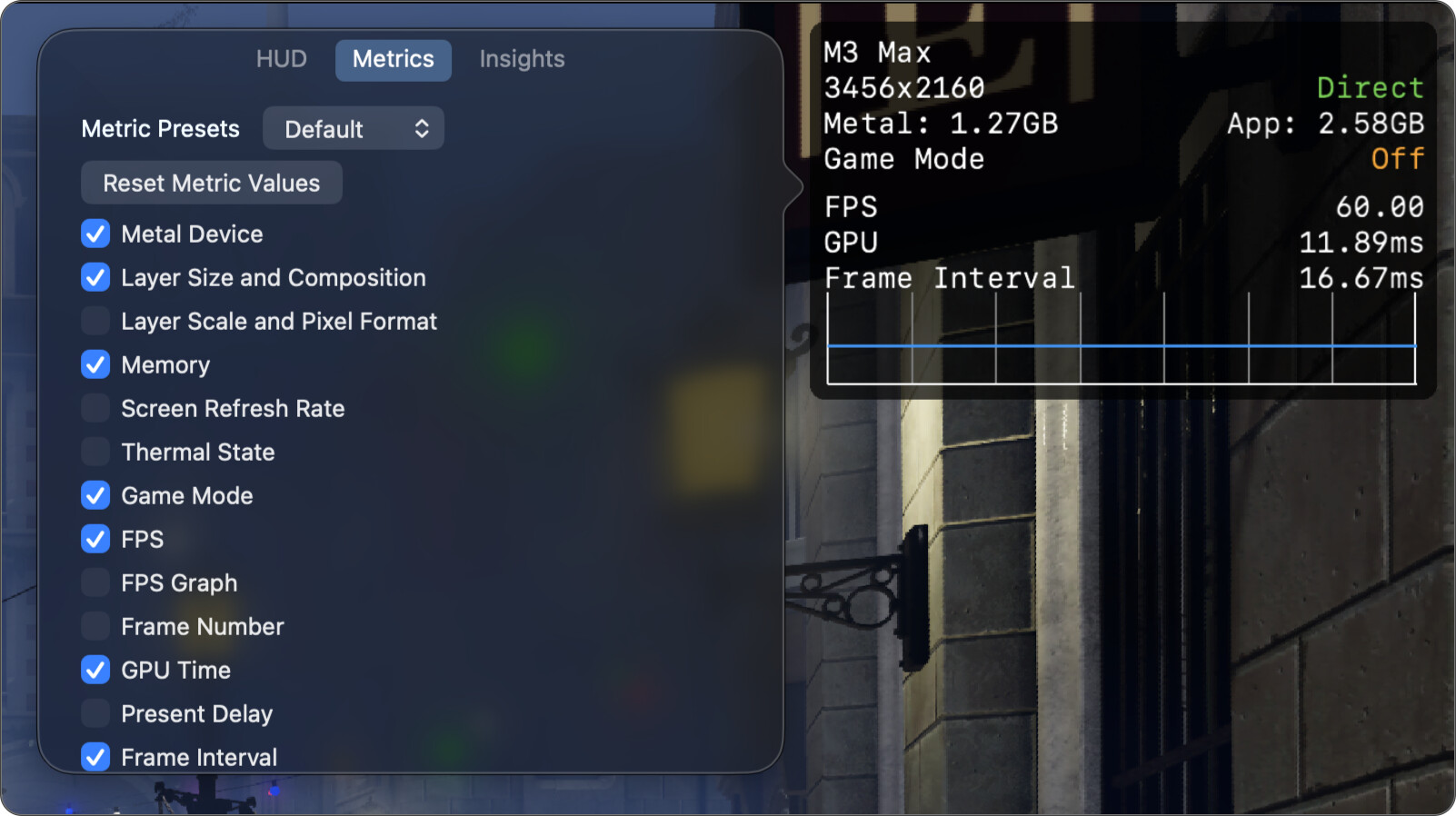
Alas METAL_CAPTURE_ENABLED=1 didn’t work. The HUD said that the capture mode is active. But capture shortcut didn’t work because MacOS blocks that feature for debug builds that are not Xcode built app or something.

—-

Luckily, It can be done programmatically as well: Capturing a Metal workload programmatically.

Here’s a blogpost: How to Capture Metal frame capture outside of Xcode.

—-

So how to do it using Odin or C?

Can someone point me to a working example, it doesn’t have to be Odin, just not Apple Xcode specific stuff or Swift or Objective C.

—-

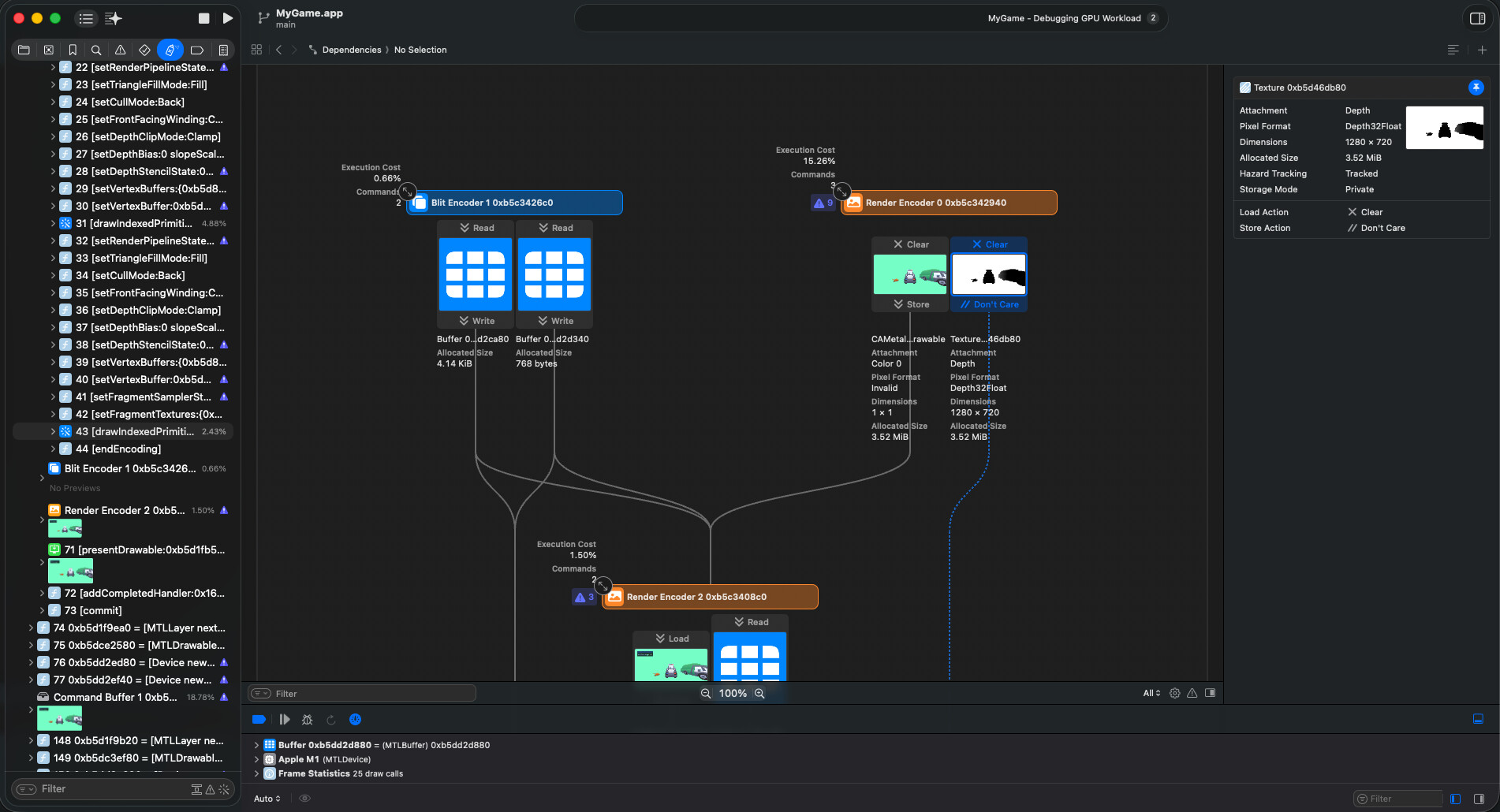
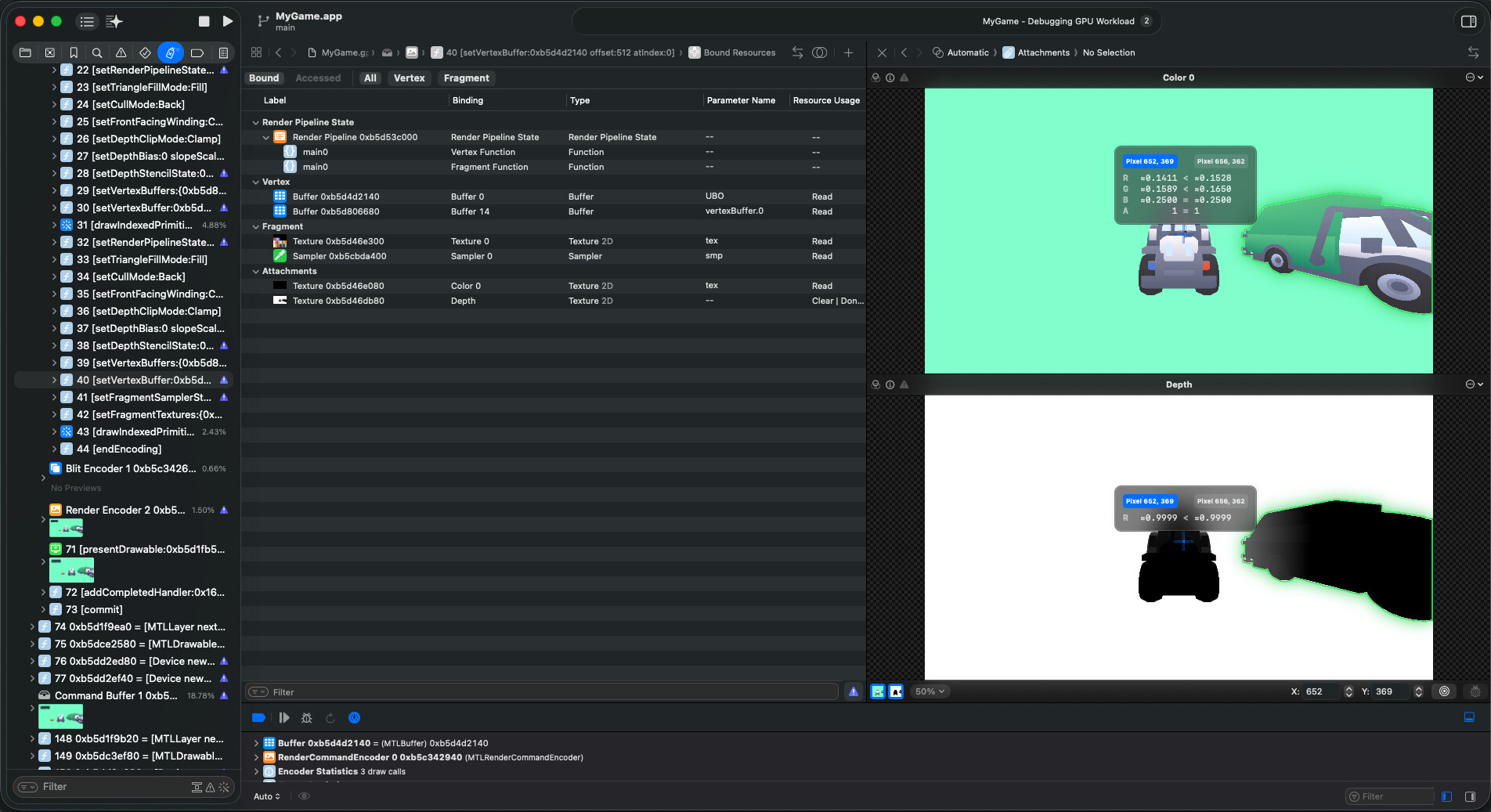
How do you debug and check intermediate GPU changes? There’s no print nothing.

If a big pink background shows up, how do you figure out what’s happening?

I want to watch the stuff we copy to GPU, see the sets, binds, buffers, transformations happening, NDC view.

Maybe have a view like shader Node editors do, which can show what’s happening after each line of code.

—-

P.S. I don’t know any alternative to Metal Debugger, let me know if there is something else.

P.P.S. There should be more tooling for the low level stuff like web world has.
So, generally speaking, if you want to use Apple APIs then you’re going to have to use Swift or Objective-C, unless you’re getting down into the low level stuff. If you want to use another language then you’re gonna have to write a wrapper.

Apple has Metal-cpp, a Metal wrapper/interop library for C++, but it doesn’t seem to include any of the ancillary stuff like frame capture.

1 Like

So invoking Swift frame capture code from Odin is the way?

Will building a bundled .app help? MacOS should treat it as native app and enable capture.

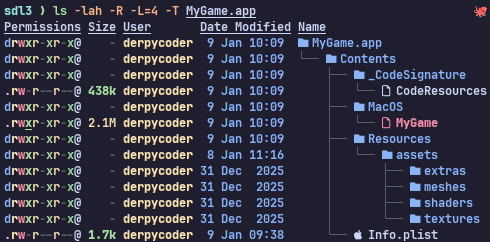
How to build a bundled Mac .app? What files to include in there for SDL3 to work?

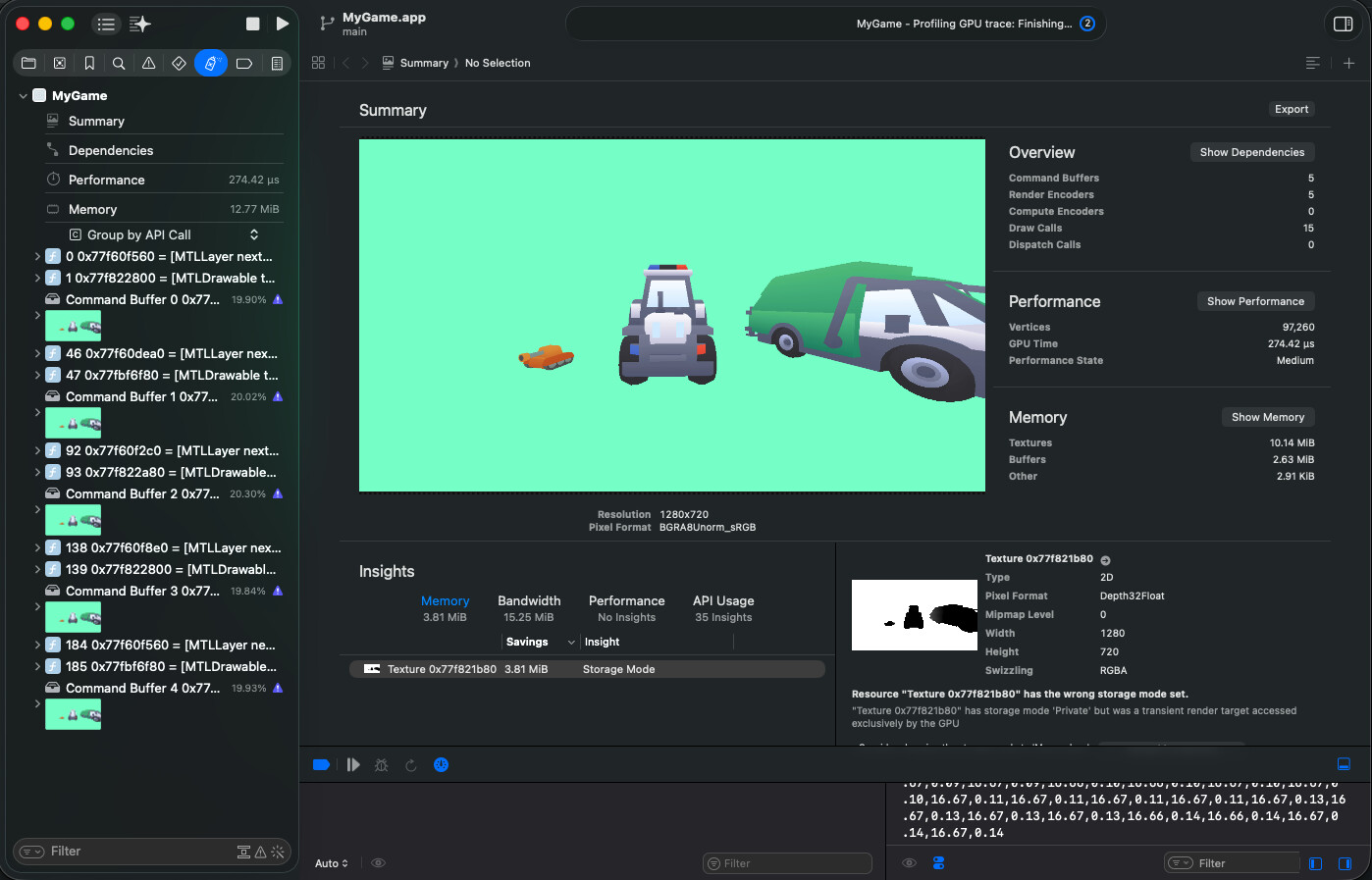
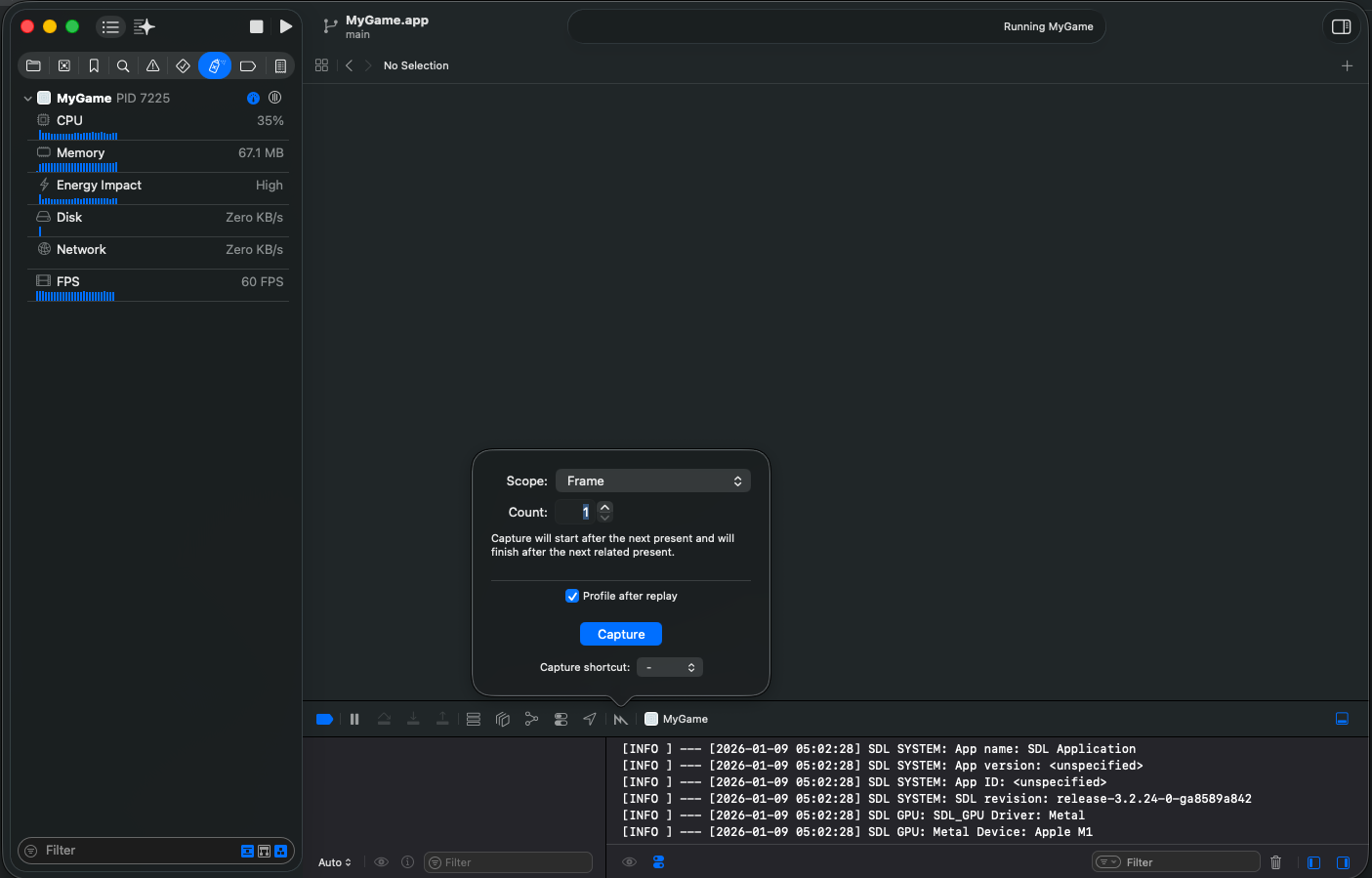
Here it is working with a bundled app. The capture doesn’t work if it’s not a Mac App.

Here is a Info.plist to put inside the bundle:

<?xml version="1.0" encoding="UTF-8"?>
<!DOCTYPE plist PUBLIC "-//Apple//DTD PLIST 1.0//EN"
 "http://www.apple.com/DTDs/PropertyList-1.0.dtd">
<plist version="1.0">
<dict>

    <!-- Identity -->
    <key>CFBundleName</key>
    <string>MyGameDev</string>

    <key>CFBundleDisplayName</key>
    <string>MyGameDev</string>

    <key>CFBundleIdentifier</key>
    <string>com.example.mygame.dev</string>

    <key>CFBundleExecutable</key>
    <string>MyGame</string>

    <key>CFBundlePackageType</key>
    <string>APPL</string>

    <!-- Versions -->
    <key>CFBundleVersion</key>
    <string>1</string>

    <key>CFBundleShortVersionString</key>
    <string>0.1.0-dev</string>

    <!-- Cocoa -->
    <key>NSPrincipalClass</key>
    <string>NSApplication</string>

    <key>NSHighResolutionCapable</key>
    <true/>

    <key>LSUIElement</key>
    <false/>

    <key>NSAppSleepDisabled</key>
    <true/>

    <!-- Metal GPU capture / validation -->
    <key>METAL_DEVICE_WRAPPER_TYPE</key>
    <integer>1</integer>

    <key>MTL_ENABLE_GPU_CAPTURE</key>
    <true/>

    <key>LSEnvironment</key>
    <dict>
        <key>MTL_HUD_ENABLED</key>
        <string>1</string>

        <key>MTL_DEBUG_LAYER</key>
        <string>1</string>

        <key>MTL_ENABLE_DEBUG_INFO</key>
        <string>1</string>

        <key>MTL_CAPTURE_ENABLED</key>
        <string>1</string>
    </dict>

    <!-- Game / app category -->
    <key>LSApplicationCategoryType</key>
    <string>public.app-category.games</string>

    <key>LSSupportsGameMode</key>
    <true/>

    <key>MTLDevicePreference</key>
    <string>HighPerformance</string>

    <!-- Minimum macOS -->
    <key>LSMinimumSystemVersion</key>
    <string>12.0</string>

</dict>
</plist>

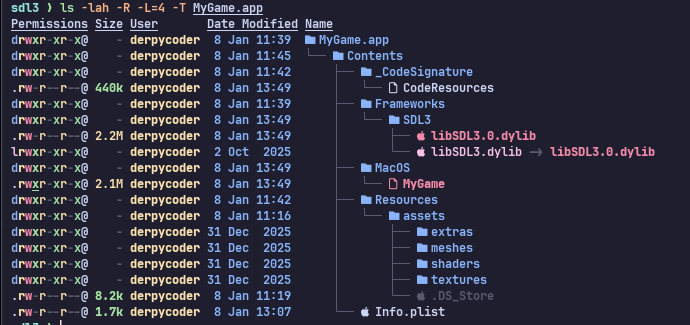
Directory structure of the Mac app


Learning from Tutorial


Metal Debugger

Here’s some commands to Make the Mac bundle, took me a while to find out, so it might help someone like me.

# Verify the Info.plist
plutil -lint Info.plist

mkdir -p MyGame.app/Contents/MacOS MyGame.app/Contents/Resources

# Copy stuff in if the files are modified, like the Info.plist, Executable and Assets
rsync -au --checksum                      Info.plist MyGame.app/Contents/Info.plist
rsync -au --checksum                        ./MyGame MyGame.app/Contents/MacOS/MyGame
rsync -a  --checksum --exclude='.DS_Store' ./assets/ MyGame.app/Contents/Resources/assets/

# Make the Bundle executable
chmod +x MyGame.app

# Adhoc sign it for dev build
codesign -fs                   - MyGame.app

# Verify if the Bundle is valid
codesign -v --strict --verbose=2 MyGame.app

Info.plist

<?xml version="1.0" encoding="UTF-8"?>
<!DOCTYPE plist PUBLIC "-//Apple//DTD PLIST 1.0//EN"
 "http://www.apple.com/DTDs/PropertyList-1.0.dtd">
<plist version="1.0">
<dict>

    <!-- Identity -->
    <key>CFBundleName</key>
    <string>MyGameDev</string>

    <key>CFBundleDisplayName</key>
    <string>MyGameDev</string>

    <key>CFBundleIdentifier</key>
    <string>com.example.mygame.dev</string>

    <key>CFBundleExecutable</key>
    <string>MyGame</string>

    <key>CFBundlePackageType</key>
    <string>APPL</string>

    <!-- Versions -->
    <key>CFBundleVersion</key>
    <string>1</string>

    <key>CFBundleShortVersionString</key>
    <string>0.1.0-dev</string>

    <!-- Cocoa -->
    <key>NSPrincipalClass</key>
    <string>NSApplication</string>

    <key>NSHighResolutionCapable</key>
    <true/>

    <key>LSUIElement</key>
    <false/>

    <key>NSAppSleepDisabled</key>
    <true/>

    <!-- Metal GPU capture / validation -->
    <key>METAL_DEVICE_WRAPPER_TYPE</key>
    <integer>1</integer>

    <key>MTL_ENABLE_GPU_CAPTURE</key>
    <true/>

    <key>LSEnvironment</key>
    <dict>
        <key>MTL_HUD_ENABLED</key>
        <string>1</string>

        <key>MTL_DEBUG_LAYER</key>
        <string>1</string>

        <key>MTL_ENABLE_DEBUG_INFO</key>
        <string>1</string>

        <key>MTL_CAPTURE_ENABLED</key>
        <string>1</string>
    </dict>

    <!-- Game / app category -->
    <key>LSApplicationCategoryType</key>
    <string>public.app-category.games</string>

    <key>LSSupportsGameMode</key>
    <true/>

    <key>MTLDevicePreference</key>
    <string>HighPerformance</string>

    <!-- Minimum macOS -->
    <key>LSMinimumSystemVersion</key>
    <string>12.0</string>

</dict>
</plist>

Result:

Bundled Game


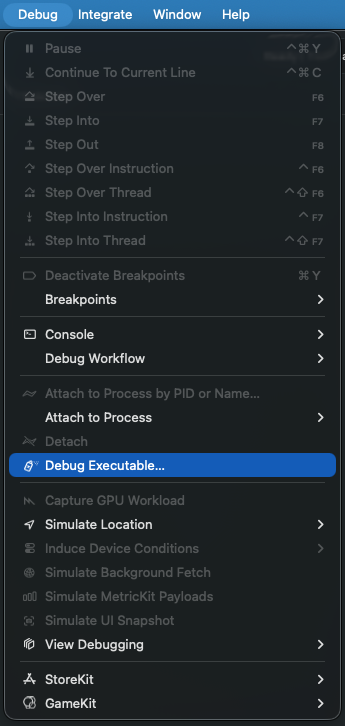
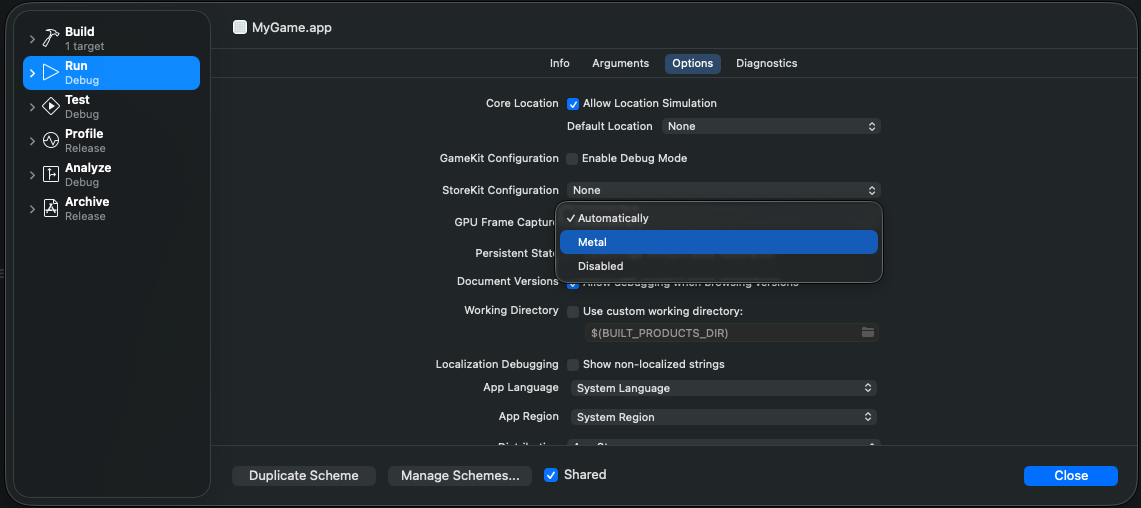
How to Debug with Metal Debugger:

Navigate to your Bundle:

Choose GPU Frame Capture: Metal

Hit Play and Click on the Metal Icon: