Introduction
I was reading README-highdpi and README-wayland to understand what options there are for supporting high DPI in games. There are a few options mentioned on those pages. I also found some other options when reading through the API index. I tried out some of these strategies and found different results for each one, so I thought I would do a comparison of the strategies I tried.
My setup
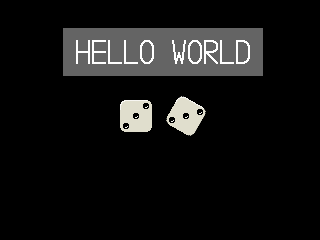
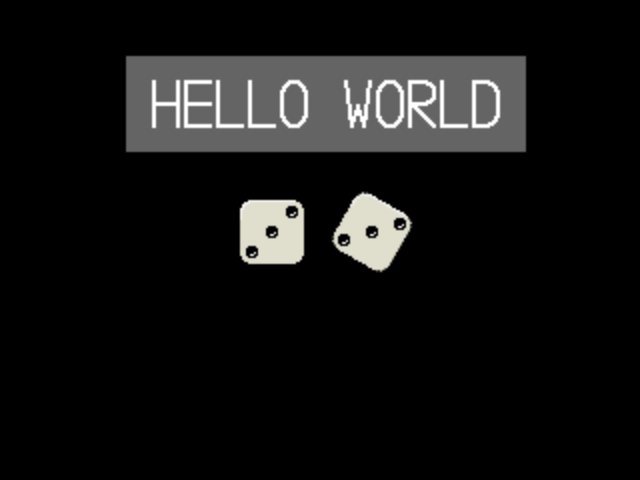
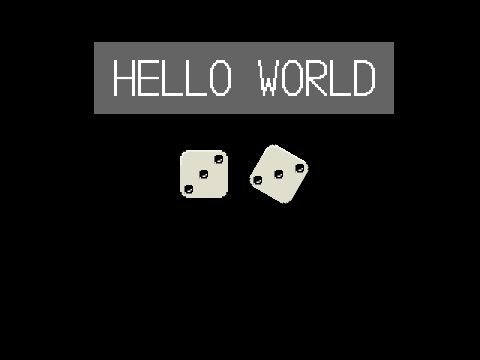
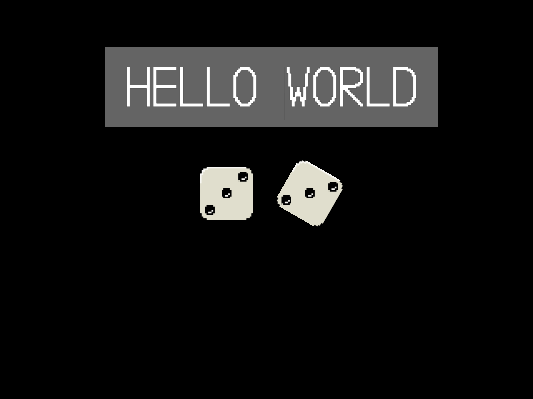
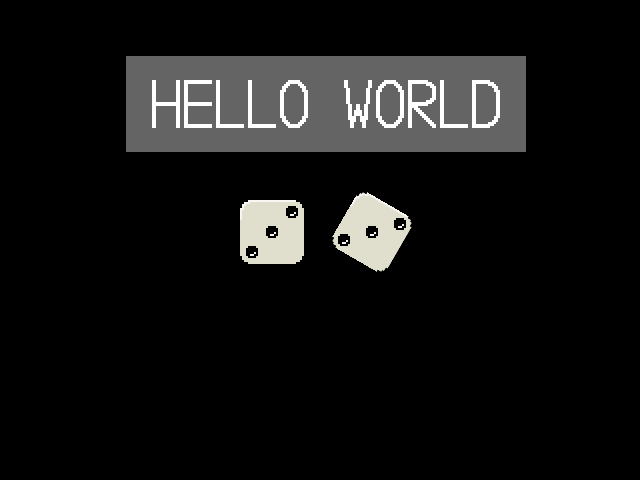
The window size in these examples is 320 × 240 pixels.
All the examples use SDL_SCALEMODE_PIXELART, a feature introduced in SDL 3.4.
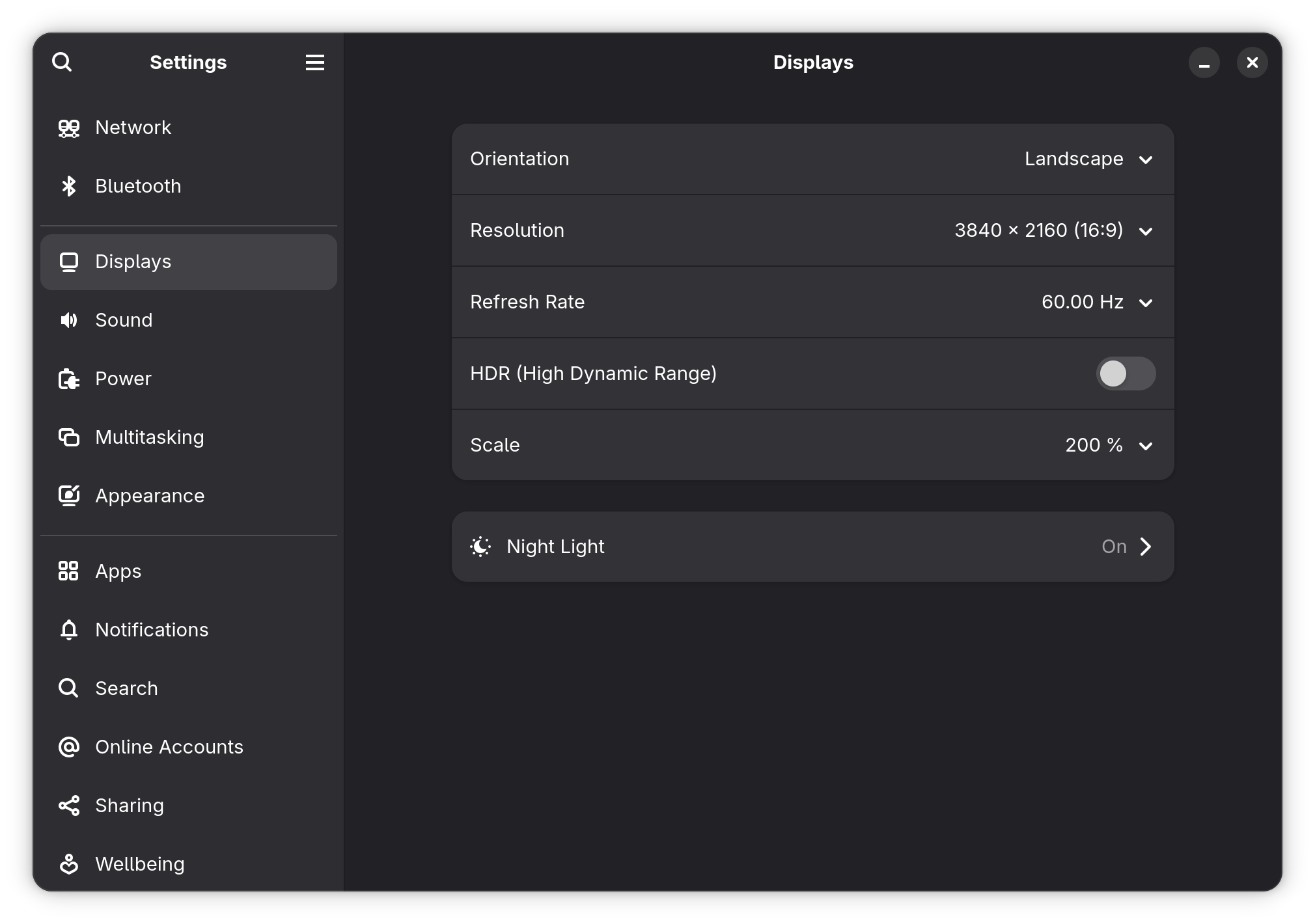
My desktop environment is Gnome Wayland. For each example, I changed my display settings to scale to 100%, 150%, 166%, and 200%. I took a screenshot of my program at each scale.
The scaling strategies
SDL_WINDOW_HIGH_PIXEL_DENSITY disabledSDL_WINDOW_HIGH_PIXEL_DENSITY disabled and SDL_VIDEO_WAYLAND_SCALE_TO_DISPLAY set to 1SDL_WINDOW_HIGH_PIXEL_DENSITY enabled and SDL_SetLogicalPresentation() set to 640 × 480 and letterbox scalingSDL_WINDOW_HIGH_PIXEL_DENSITY enabled and each draw operation scaled up using SDL_RenderCoordinatesFromWindow()SDL_WINDOW_HIGH_PIXEL_DENSITY set to true and everything rendered to a 320 × 240 buffer, then the buffer scaled to window size all at once
1 Like
1. SDL_WINDOW_HIGH_PIXEL_DENSITY disabled
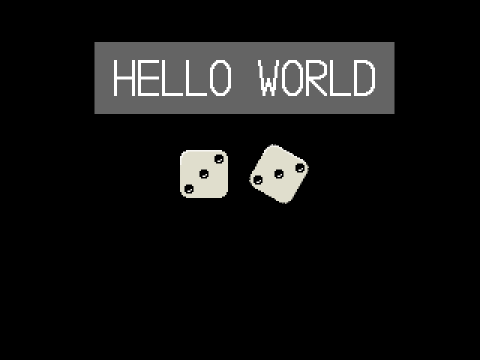
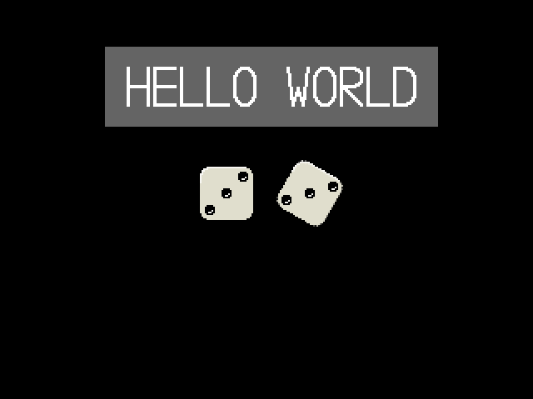
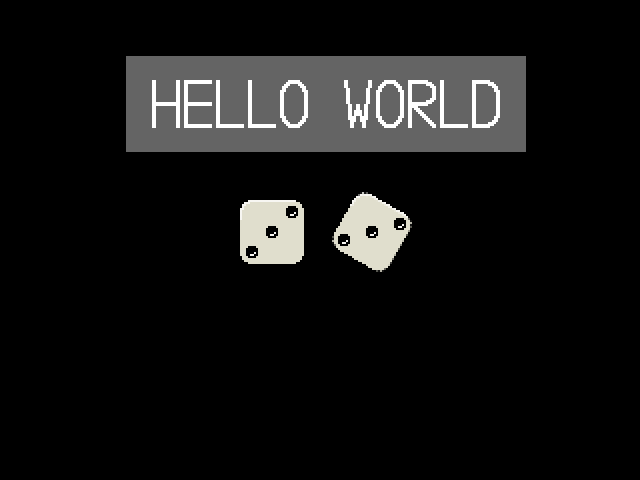
If you don’t enable the SDL_WINDOW_HIGH_PIXEL_DENSITY window flag during window creation, Wayland will scale the window automatically. As README-highdpi puts it, “high DPI support is achieved by providing an optional flag for the developer to request more pixels”. In these screenshots you can see that the window is scaled with a simple linear filter. At higher scale levels, all the graphical elements look blurry. As the author of the SDL program, there isn’t a way to change the scaling to use a nearest neighbor or any other filter.
Here’s what the code looks like: https://git.sr.ht/~xordspar0/workbench/tree/91bc6f5c/item/c/sdl/scale-demo/scale-demo.c
2. SDL_WINDOW_HIGH_PIXEL_DENSITY disabled and SDL_VIDEO_WAYLAND_SCALE_TO_DISPLAY set to 1
SDL_VIDEO_WAYLAND_SCALE_TO_DISPLAY is mentioned in README-wayland:
Wayland handles high-DPI displays by scaling the desktop, which causes applications that are not designed to be DPI-aware to be automatically scaled by the window manager, which results in them being blurry. SDL can attempt to scale these applications such that they will be output with a 1:1 pixel aspect, however this may be buggy, especially with odd-sized windows and/or scale factors that aren’t quarter-increments (125%, 150%, etc…). To enable this, set the environment variable SDL_VIDEO_WAYLAND_SCALE_TO_DISPLAY=1
This could be useful in certain situations, but it’s generally not a good option because:
- It’s Wayland-specific. You’ll still have to deal with scaling in other video systems.
- It completely turns off scaling, resulting in a tiny window on high DPI screens.
As you can see in the screenshots, the user’s display scale makes no difference. In every screenshot, the window is exactly 320 × 240. The user’s scale preference is ignored.
Here’s what the code looks like: https://git.sr.ht/~xordspar0/workbench/tree/4224849e/item/c/sdl/scale-demo/scale-demo.c
3. SDL_WINDOW_HIGH_PIXEL_DENSITY enabled and SDL_SetLogicalPresentation() set to 640 × 480 and letterbox scaling
SDL_SetLogicalPresentation() isn’t mentioned in either README-highdpi or README-wayland, but it seems like an attractive option for automatically scaling all render operations to the right scale. The docs say:
This function sets the width and height of the logical rendering output. The renderer will act as if the current render target is always the requested dimensions, scaling to the actual resolution as necessary.
This can be useful for games that expect a fixed size, but would like to scale the output to whatever is available, regardless of how a user resizes a window, or if the display is high DPI.
Here’s what the code looks like: https://git.sr.ht/~xordspar0/workbench/tree/ee455925/item/c/sdl/scale-demo/scale-demo.c
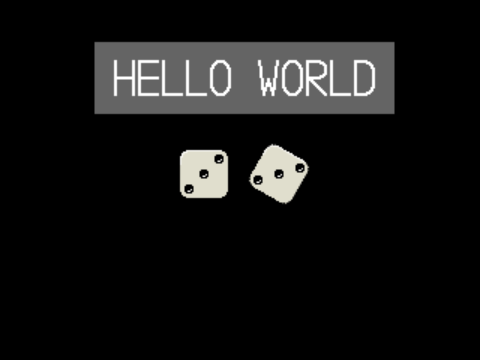
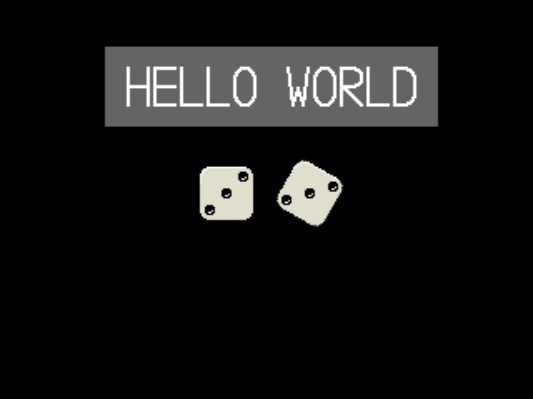
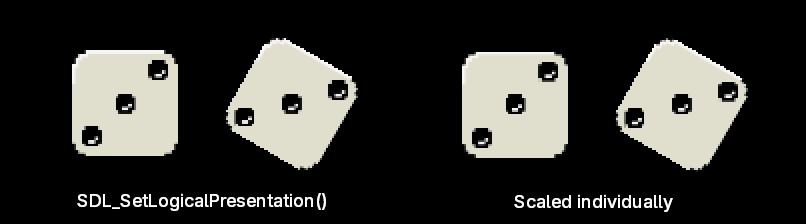
At integer scales, this looks really good. SDL_SCALEMODE_PIXELART is doing a great job here. The scaled textures look fairly sharp, but there is a filter at the resolution of the high DPI screen that smooths out artifacts caused by scaling and rotation. Below is a detail of the rotated die texture at 200% and 400% scale.
However, at non-integer scales, the scaling doesn’t look very good. Also, notice the artifacts at the edges of scaled textures. This reveals a flaw in my font spritesheet: some of my font sprites touch the border of their cell, so those artifacts are the ghosts of bordering cells.
4. SDL_WINDOW_HIGH_PIXEL_DENSITY enabled and each draw operation scaled up using SDL_RenderCoordinatesFromWindow()
Here’s what the code looks like: https://git.sr.ht/~xordspar0/workbench/tree/0f0b4505/item/c/sdl/scale-demo/scale-demo.c
Similar to the SDL_SetLogicalPresentation() version, it looks great at integer scales. In fact, the result is pixel-for-pixel identical to using SDL_SetLogicalPresentation() at integer scales.
At non-integer scales, textures don’t look great. This version looks very similar to the SDL_SetLogicalPresentation() version, but it’s not identical. I’m not sure what causes that difference. Below is a comparison of SDL_SetLogicalPresentation() and SDL_RenderCoordinatesFromWindow() with my display scale set to 1.66. I magnified the image by 2 to highlight the details.
Also, just like the SDL_SetLogicalPresentation() version, there are artifacts at the edges of the scaled textures, though it looks slightly different.
5. SDL_WINDOW_HIGH_PIXEL_DENSITY set to true and everything rendered to a 320 × 240 buffer, then the buffer scaled to window size all at once
In this demo I render everything to a fixed-size buffer, regardless of the screen size or display scale. The last thing I do in each frame is render this buffer texture to the screen, scaling up the whole buffer at once. This doesn’t really take advantage of the high pixel density of the screen. It’s like the first strategy, SDL_WINDOW_HIGH_PIXEL_DENSITY disabled, except you have more control over how the scaling happens.
Here’s what the code looks like: https://git.sr.ht/~xordspar0/workbench/tree/6e65f49e/item/c/sdl/scale-demo/scale-demo.c
Conclusion
- If you use the default of
SDL_WINDOW_HIGH_PIXEL_DENSITY being disabled, the result is acceptable. Your program won’t look either terrible or great. You have very little control over the end result, but also there won’t be any graphical mistakes or glitches.
- Avoid
SDL_VIDEO_WAYLAND_SCALE_TO_DISPLAY unless you have a specific reason to use it.
- To scale up individual textures, you can use either
SDL_SetLogicalPresentation(), which takes care of scaling each graphical element automatically, or you can scale everything yourself using SDL_RenderCoordinatesFromWindow(). While there are differences between the two, both look good at integer scales but have graphical artifacts at non-integer scales. Maybe a good option is to use SDL_SetLogicalPresentation() with mode set to SDL_LOGICAL_PRESENTATION_INTEGER_SCALE.
- If you want your game to have a fixed resolution, rendering to a fixed-size buffer and then scaling up is a great option. This could work if you want to emulate the visual style of an old video game system, or maybe you’re literally building a video game system emulator. The original Cave Story rendered to a fixed 320 × 240, used a custom sound engine with a unique sound file format, and used a custom VM to execute scripts compiled to bytecode. In a way, Cave Story was a predecessor to fantasy game consoles like PICO-8 and TIC-80. I think rendering to a fixed-size buffer works great for this kind of game.
Question: does anyone have an idea of why these artifacts happen at non-integer scales and if there’s a way to fix it? Or is the answer to use something like SDL_LOGICAL_PRESENTATION_INTEGER_SCALE?
Edit: Ack, I figured it out. Some of my font sprites touch the border of their cell, so those artifacts I see are the ghosts of bordering cells.